Southafrica

Posts Tagged ‘MSN’

fring for iPhone over 3G on its way!

Saturday, October 10th, 2009

We’re very excited about AT&T’s announcement today (confirmed by Apple) that its 3G wireless network will be open to third-party Internet voice applications on iPhone.

Until now fring users could only use fring on their iPhone over Wi-Fi, so this comes as great news for us and our iPhone fringsters.

iphonescreenshots 001

fring’s dev team is hard at work, making sure we will be ready to go once 3G iPhone gates are open . We will be live before you can even say “fring for iPhone over 3G on its way!” with the new feature-packed version we released just today… but also over 3G!

fringTEAM

Feature highlight – merging contacts on 3.40

Monday, June 22nd, 2009

It seems that you guys really like the new 3.40 version - that’s great!

Some of you have asked about the manual contact merging, so here’s a little explanation for you:

How does it work?

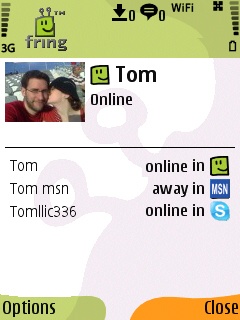
I have a friend called Tom. Now, Tom is such a good friend of mine that I’ve added him as a friend on MSN, Skype and fring.

On the new 3.40 version I can merge Tom’s entity from these services into one contact on my fring buddy list. Sounds convenient, isn’t it?

How do I do that?

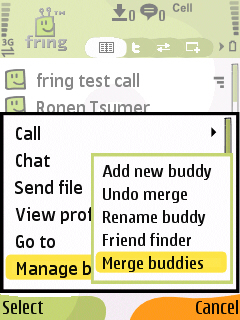
Highlight your buddy on the buddy list and choose Options –> Manage buddies –> Merge buddies.

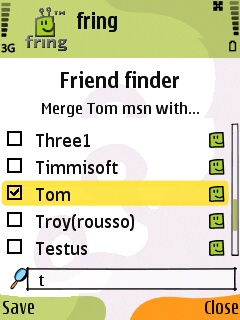
menu friendfinder

2. Check the box near the contact or the contacts you would like to merge with your buddy and click Save.
This process can also be done directly from my buddy’s profile screen by highlighting your buddy, choosing Options –> View Profile –> Options –> Merge buddy.

Cool. The first step is done.

profile


How do you call/chat this contact?
I see that Tom is now online and I wish to make a call to him. I choose him from the contact list and hit the green button. I’ll choose the service I wish to use and click the joystick.

To start a chat with Tom I can click on ‘options‘ –> ‘Chat‘ and start typing my message. Now, the first message will be broadcasted to all the services that Tom is currently available on. The conversation will continue on whatever service Tom will choose to reply on. Simple.

As always, we’d love to hear your thoughts and comments about this feature and about the brand new 3.40.

You ask and fring delivers fring 3.4 – Socialmashing

Wednesday, June 3rd, 2009

Attention, Attention, drum roll… we’re very excited to announce that fring version 3.4 has just gone live.

As you probably already know most of us have several social circles developing in parallel, I mean who uses only own social tool these days? At fring we’ve been listening to what users of social media really want, and especially our community of fringsters, using this valuable feedback from the community we came up with a few new solutions mashing up all your separate communities of friends into one manageable, mobile interface via fring.

From now on, fring lets you easily create one rich, dynamic profile for each of your contacts so you can see what anyone is up to at a glance, and interact via all your mutual social networks/services directly from one combined profile. It’s all happening on fring!

So what does it mean?

  • No more multiple listings for the same friend!
  • Viewing a fringster’s profile, you can see whether he’s currently available via fring, Skype or MSN, and other IM services.
  • We “hint” you when a friend from your regular phone book or another social network like Skype, AIM etc is also a fringster so you can add them to your fring friend list and complete their personal profile.
  • You can control how your fring world sees you! You can update your own fring profile photo, mood status and nick name

How do you do it?

  • To merge together multiple contacts, follow these steps: In buddy list, select the user you want to merge > Go to “Manage buddies> choose “Merge buddies”> it will take you to your buddy list. Scroll down to other names for the same contact that you’d like to merge > Click OK to check the box next to each > Hit Save. You’re done
  • To update your profile click on Options> Edit my profile> Options> and choose Update picture/ Update mood text/ Change nickname.
  • When initially registering to fring, you will be alerted of all your GSM and social community friends who are already fringsters. Once you start using fring, we’ll let you know when other friends become fringsters by clicking Options>Manage buddies > Friend finder.

These new features currently work on all Symbian devices; Windows Mobile and iPhone are coming soon. Full feature- list for the new version can be found here. Get your new version today.

A full feature- list for the new version can be found here.

Official press release is available here.

Have fun - and as always, let us know how the new unifying fring works for you!

fring Team

Feature highlight: Always-on

Monday, April 6th, 2009

Hi guys

As you know, we released the new iPhone version a few days ago and the feedback so far has been great!
Several people have asked us about their always-on presence option even when fring is turned off, so here is a communal explanation for y’all:

The new Always-On feature keeps you logged into fring even when the fring application is closed on your iPhone/iPod touch.

It works like this:

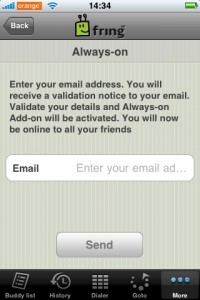
To activate the Always-On add-on, click on ‘More‘ –> Add-ons –> Always on.
You’ll get the following screen
3

Enter the email address you have configured into your iPhone and click ‘Send
Within a few seconds you should get an activation email. Open the email on your iPhone and click the link to activate the service.

Once you’ve clicked the link and activated the service you can click the home button and fring will keep you logged in. This of course works with all the services you use on fring ( fring, Skype, MSN, Google talk, ICQ, Yahoo etc)

How do I get the notifications?

To get the notifications in real time you should have your email address configured to be “pushed” to your iPhone/iPod. Once you got that done, you’ll get an email whenever someone’s trying to call/chat you. Just open the mail and click the link –> fring will open up on your phone and display the message.

If you don’t click the link within 5 minutes - we will log you off from the Always-on service and won’t send you more notifications until you log in again to fring (we don’t like spam…)

I’ve registered to the add-on, Now I want to go offline, How do I do that?
1

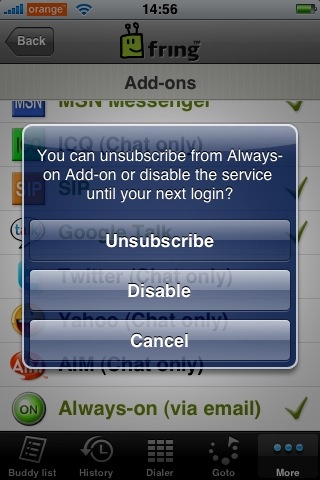
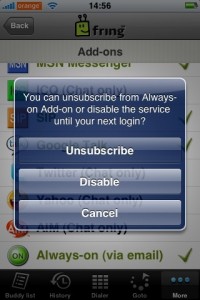
Open fring, click on ‘More‘ –> Add-ons –> Always-on.

You’ll get the above pop up. If you click on ‘Disable’ we will log you off from the service until the next time you open fring. Or, you can unsubscribe from the add-on completely (but why would you want to do that ! ? :-) )

A few things:
1. Currently this feature is available for UK and US users only but no worries… we will gradually make it available to all countries.
2. Once you’ve subscribed to this service we will keep you online for between 2-4 hours. This time frame may vary based on country as we are still fine-tuning this process in order to optimize your experience.
3. As we mentioned in the initial blog post, this feature will eventually use Apple’s 3.0 firmware notification SDK, once it’s made publicly.

We are hoping to add more countries in the next few weeks so stay tuned for more news.

As always, your comments and feedback is much appreciated!

The fringTEAM

fring - your friends, mobile

Thursday, April 2nd, 2009

Hey guys

Did you know? With the free fring mobile application you can take all your friends, mobile.

If your favourite network is not yet supported, please drop us a line and we will work on adding it ;-)

Top 10 Nokia 5800 Xpress Music applications

Monday, March 23rd, 2009

Having just upgraded my handset to the shiny new Nokia 5800 Xpress Music aka Tube, I thought it good to do a post showing the applications I have personally found to be the most useful on my 5800.

There are currently not many applications that support this sexy handset but given some time I am sure many new apps will become available.

Please note that my list of top 10 must have apps for the 5800 includes both free and premium services.

  1. fring - Lets you talk, chat and interact freely between: Skype, Yahoo, MSN, ICQ, Twitter, Facebook, GoogleTalk, AIM, SIP, Gmail Notifier, LastFM, Orkut and Yandex
  2. JoikuSpot - Turns your mobile handset into a secure WLAN (Wi-Fi) HotSpot.
  3. Gmail - Google’s free email service - this is the best email service on earth.
  4. Google Maps - Possibly the best free mobile mapping software available.
  5. Opera Mini - The world’s most popular mobile Web browser
  6. File Zip - Easily zip and unzip files on your 5800 - Get it from the download menu on your handset.
  7. Accuweather - The best weather application on the 5800. It’s also in the download menu on handset.
  8. Best Screensnap - A cool application for taking screenshots. In the download menu on handset.
  9. Photoflow - This is a great application for viewing images. In the download menu on handset.
  10. Paint Pad - For those of us who love to draw. Available from the download menu on handset.

This is my current Top 10 and when more applications become available the list will change ;-)