Category ArchiveFeature Highlight
Android & Around the fring & Feature Highlight & Product admin on 17 Feb 2011
Product Team update: Behind the scenes of the latest fring for Android
Hi guys,
I’m Gilad from fring’s Product team, and I am excited to be writing to you on our blog for the first time. I want to share with you some behind the scenes stuff going on here at the fring HQ.
As you know we released a new Android version (Feb 3rd) which included our new notifications bar and activity log.
Our thinking behind this was how to provide instant information about activities that go on in fring. We wanted to address everything from missed calls, incoming chats, through to new friends’ alerts, as well as reminding you that fring is up & running.
And indeed, with the version, we saw a huge jump in people using fring daily. So that seemed to be working well.
However, just after the launch our Android development team leader, Guy, saw your comments about the permanent fring-is-running icon.
Your comments ranged from:

To:

So we sat down to re-think this, and think about what is more important – a constant reminder that fring is up & running, or letting fring run in a less visible way? Our solution – do both!
We decided to remove the fring-is-running icon by default from the notification bar, but this can be easily changed to see it in the application’s settings if you want to.
Thus – giving you the option to select which option works best for you, while still improving fring’s visibility.
We hope you like our new version – feel free to comment some more and help us make an even better fring for you.
Cheers,
Gilad

Feature Highlight admin on 23 Jul 2009
Feature highlight: Push notification
So, you’ve all been very excited about the new ‘Push notification’ we released last week but since it’s a new feature on the iPhone 3.0 firmware some of you had a few questions about it. So let’s dive in and explain it a bit further:
Using the new Push Notification capability, you can now be notified when you receive a call or a chat when fring is not running.
Note: Push Notification is only available on firmware version 3.x or newer. If you are using an older firmware version, you can use the “Always-on” add-on.
Once you register to fring and run it for the first time, you will see this message on your screen:
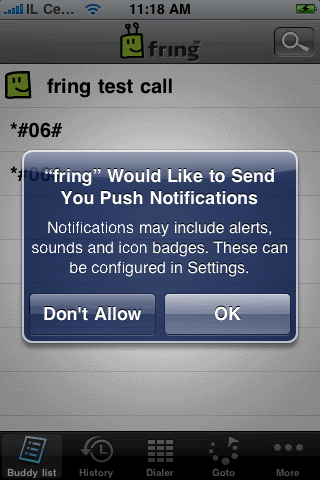
Choose OK and your contacts will continue seeing you as ‘online’ once you exit fring and will be able to send you chat messages and to call you.
Choosing Don’t Allow will dismiss this window and you will not get notifications.
Note: Once you exit fring, your contacts will see you online and you’ll be available for the next 6-8 hours. We’re still fine tuning this period based on your feedback.
When a contact will send you a chat message or try to call you while out of fring, you’ll receive these notifications:
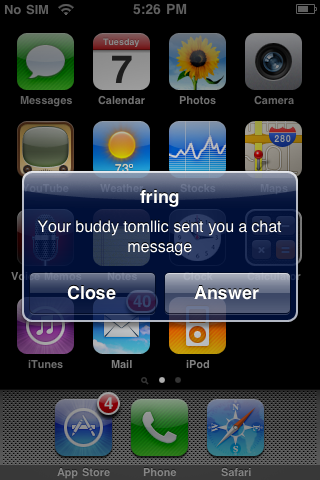
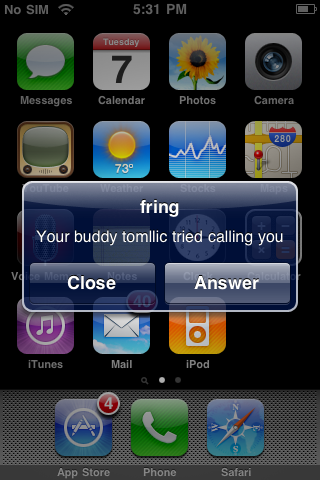
If you choose Answer, fring will launch and these windows will follow:
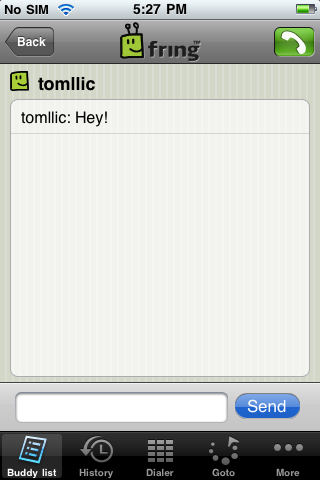
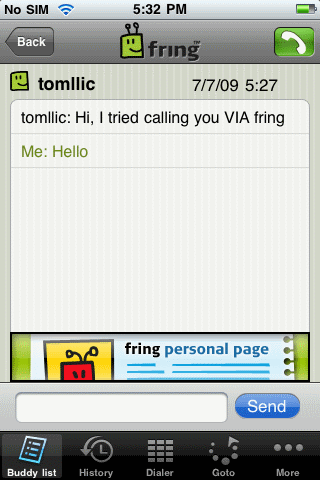
Note: if you choose Close, you will not be available any longer and your contacts will see you offline until the next time you launch fring.
Temporarily disabling Push Notification
If for some reason, you don’t want that your contacts to see you online when fring is not running, you can temporarily disable Push Notification. Just open fring, click on More -> Go Offline -> click Offline again. Quick & easy.
Well, seems that we covered most of this feature. If you have any questions feel free to post them here and we’ll be happy to answer them.
The fringTEAM
Feature Highlight admin on 14 Jun 2009
Feature highlight – merging contacts on 3.40
It seems that you guys really like the new 3.40 version - that’s great!
Some of you have asked about the manual contact merging, so here’s a little explanation for you:
How does it work?
I have a friend called Tom. Now, Tom is such a good friend of mine that I’ve added him as a friend on MSN, Skype and fring.
On the new 3.40 version I can merge Tom’s entity from these services into one contact on my fring buddy list. Sounds convenient, isn’t it?
How do I do that?
Highlight your buddy on the buddy list and choose Options -> Manage buddies -> Merge buddies.
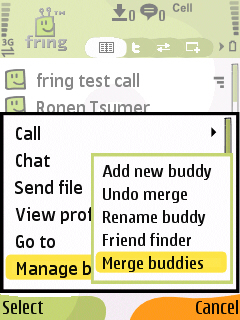
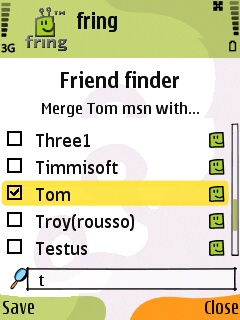
2. Check the box near the contact or the contacts you would like to merge with your buddy and click Save.
This process can also be done directly from my buddy’s profile screen by highlighting your buddy, choosing Options -> View Profile -> Options -> Merge buddy.
Cool. The first step is done.
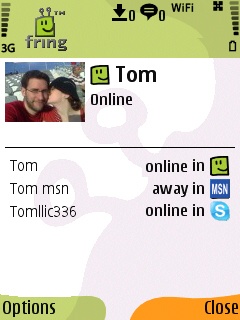
How do you call/chat this contact?
I see that Tom is now online and I wish to make a call to him. I choose him from the contact list and hit the green button. I’ll choose the service I wish to use and click the joystick.
To start a chat with Tom I can click on ‘options‘ -> ‘Chat‘ and start typing my message. Now, the first message will be broadcasted to all the services that Tom is currently available on. The conversation will continue on whatever service Tom will choose to reply on. Simple.
As always, we’d love to hear your thoughts and comments about this feature and about the brand new 3.40.


